
Manage workspace
You need to have manage workspace permission to access the manage workspace section.
How to access the manage workspace section
You can access the manage workspace section from the main menu.

Manage workspace details
In the details section you can manage the following details:
- Organization name
- Description
- Logo
- Upload a PNG file with a height of 40px
- This logo will appear in the title bar and emails
- If the dimensions differ, the image will be automatically resized

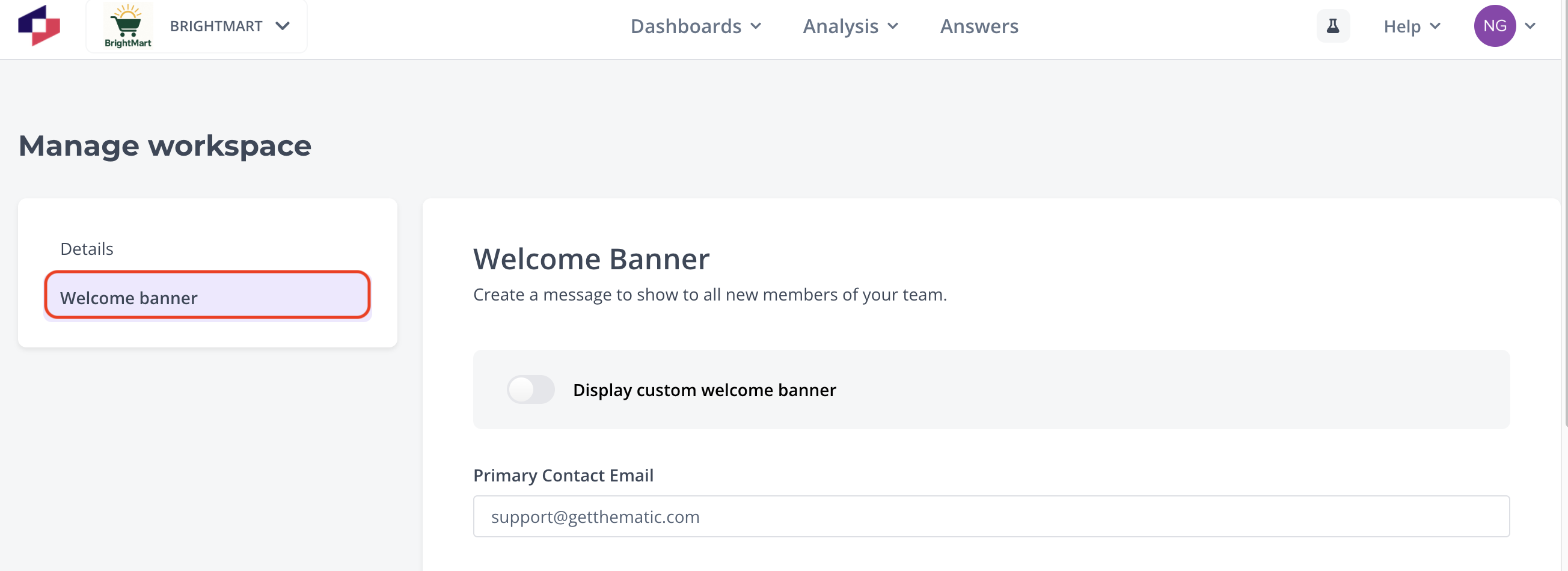
Manage welcome banner
For more information on managing the welcome banner, click here.
Manage MCP access
Control what AI assistants, such as Claude or ChatGPT, can do in your organization through the Thematic MCP Server.
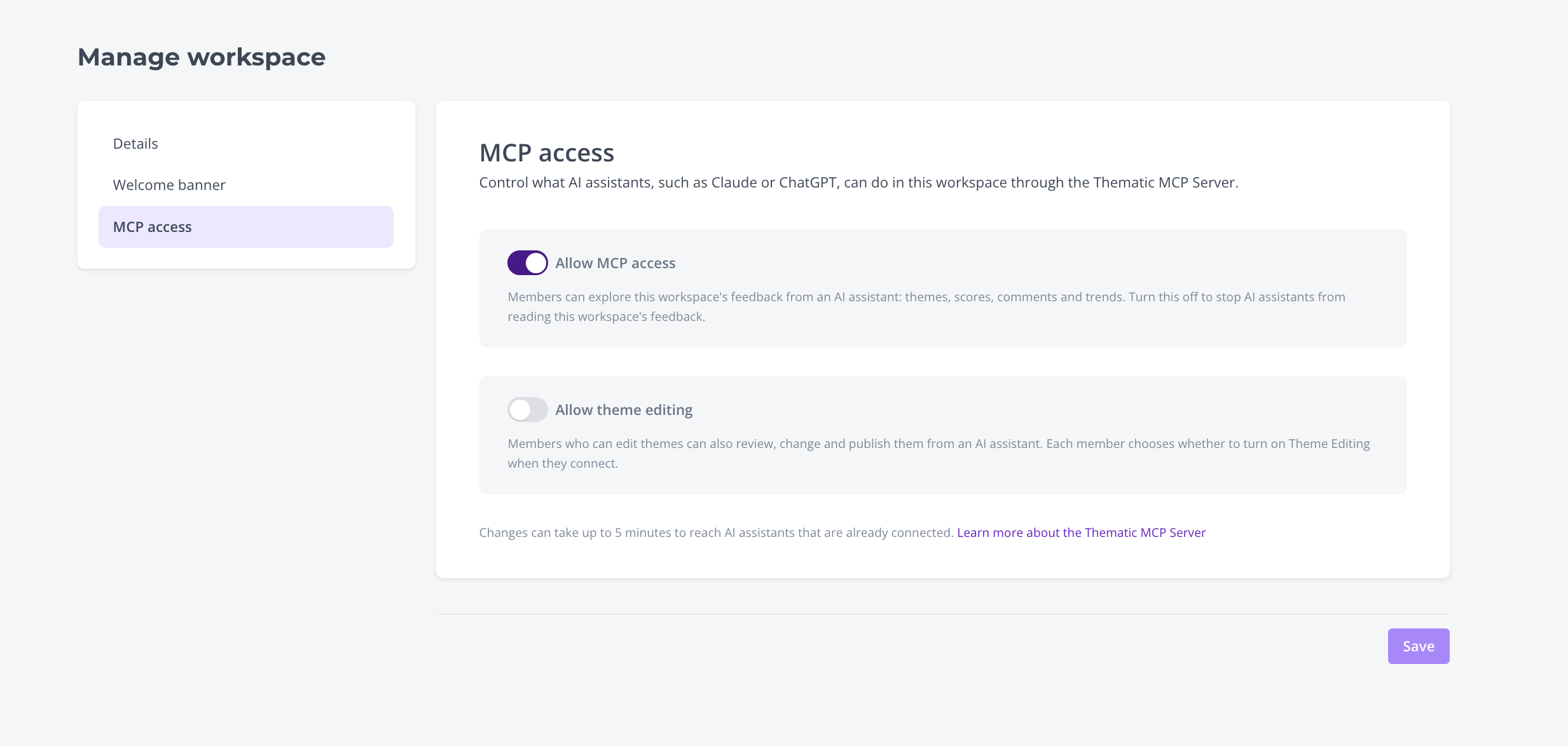
- Allow MCP access (on by default) lets members explore your organization's feedback from an AI assistant: themes, scores, comments and trends. Turn it off to stop AI assistants reading your organization's feedback.
- Allow theme editing (off by default) lets members who already have theme editing permissions also review, change and publish themes from an AI assistant. Each member still chooses whether to turn on Theme Editing when they connect.
Click Save after making changes. Changes can take up to 5 minutes to reach AI assistants that are already connected.
For what each setting allows, see the Analysis and Theme Editing feature group articles.
Was this article helpful?
Your feedback helps us improve our documentation.