
How to set up Single Sign On
This page details how to set up single sign on for a customer. It ignores the technical details of how SSO works at Thematic.
In particular, Thematic's SSO implementation is based on SAML 2.0.
The most important thing to understand: SSO tells us who a person is, not what they are allowed to do. If that person doesn't already have an account in Thematic they still will not be able to log in. So adding a user who will sign in using SSO still needs to be done before they can have access.
Step 1: Request SSO
Contact your Thematic Customer Success Manager and request that SSO be turned on. To do so you will need to provide the domain that it should be enabled for. They will then provide you with the necessary information to complete the rest of the setup in your identity provider
Step 2: Configure SSO inside Thematic
Once your domain has been registered by your CSM you will be able to manage the service provider setup within Thematic.
- From the Manage Users page select 'Manage SSO'

- Select the domain that you want to set up

- Enter the details of the iDP
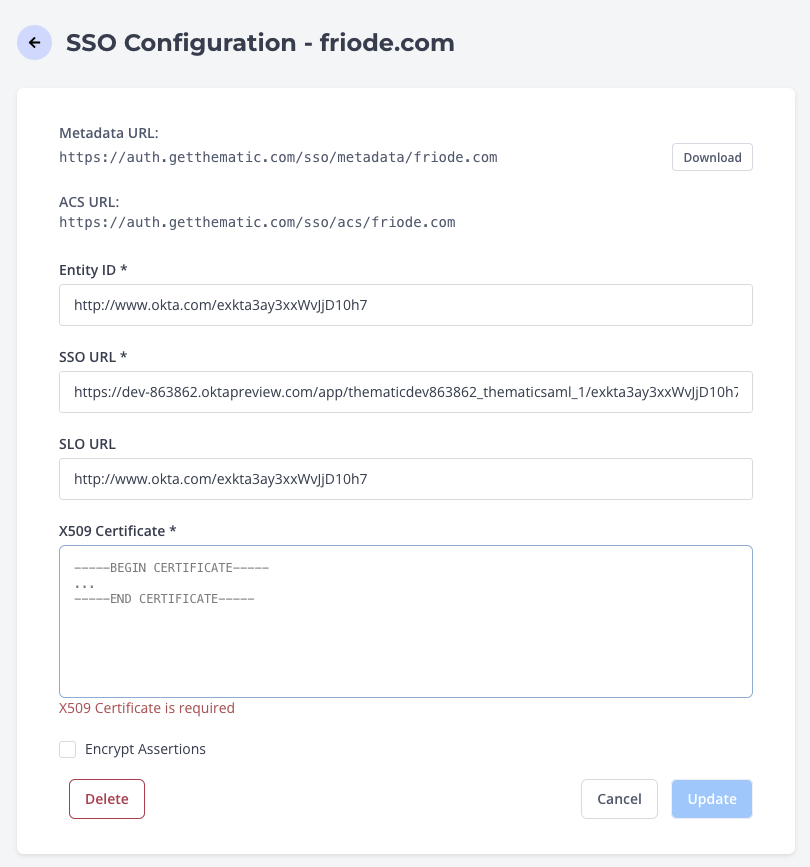
- Use the metadata URL to retrieve the entries you need for Step 3
Step 3: Configure SSO inside your iDP
Instructions will be different depending on your identity provider. Below we provide an example of setting up with Okta.
Okta:
You will need:
- Log in to Okta
- Click on 'Applications' in the top menu
- Click the 'Add Application' button on the top left
- Search for 'Thematic'
- Add the Thematic app. This will add an app to your Okta instance and will default to the 'Assignments' Tab
-
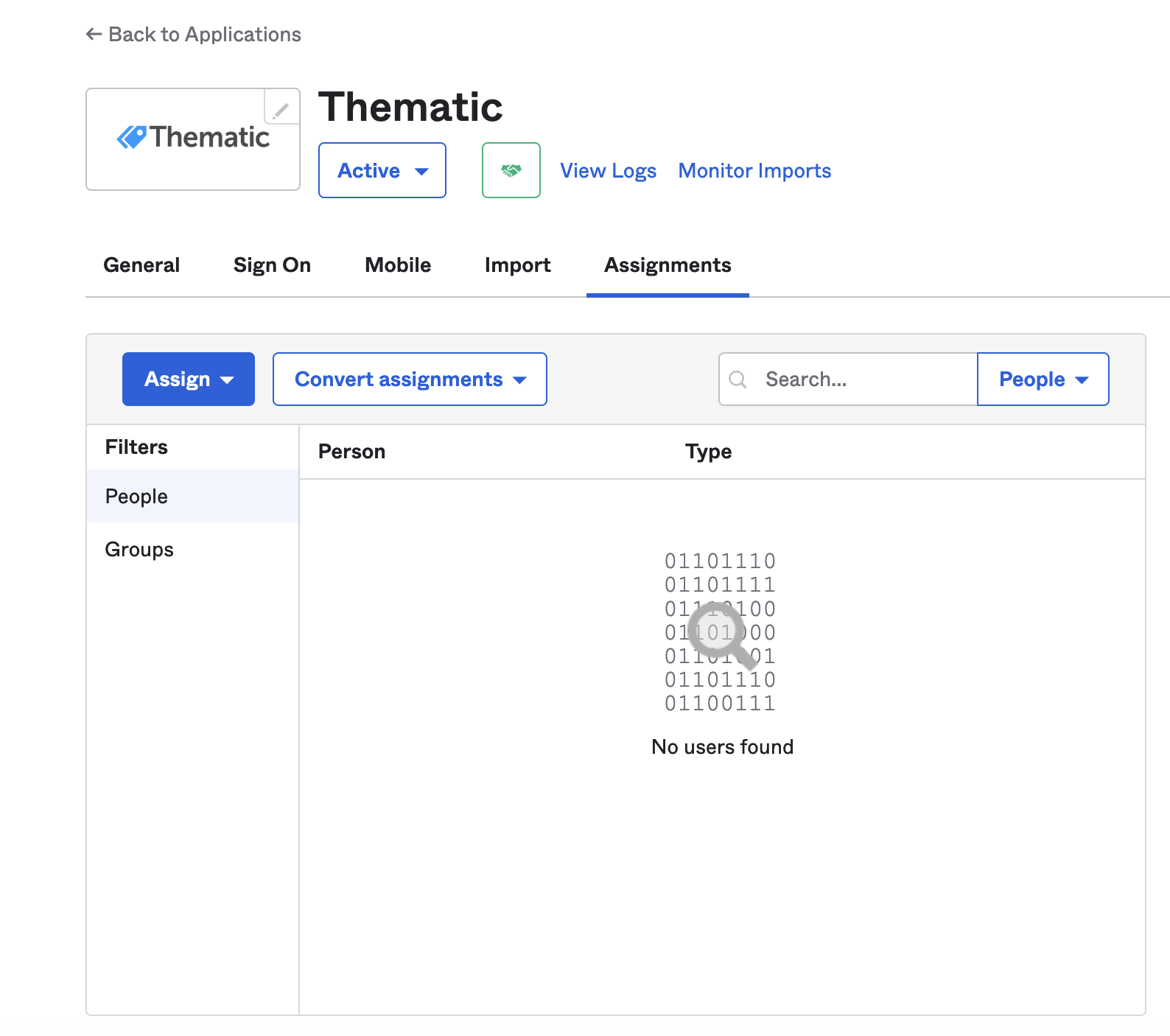
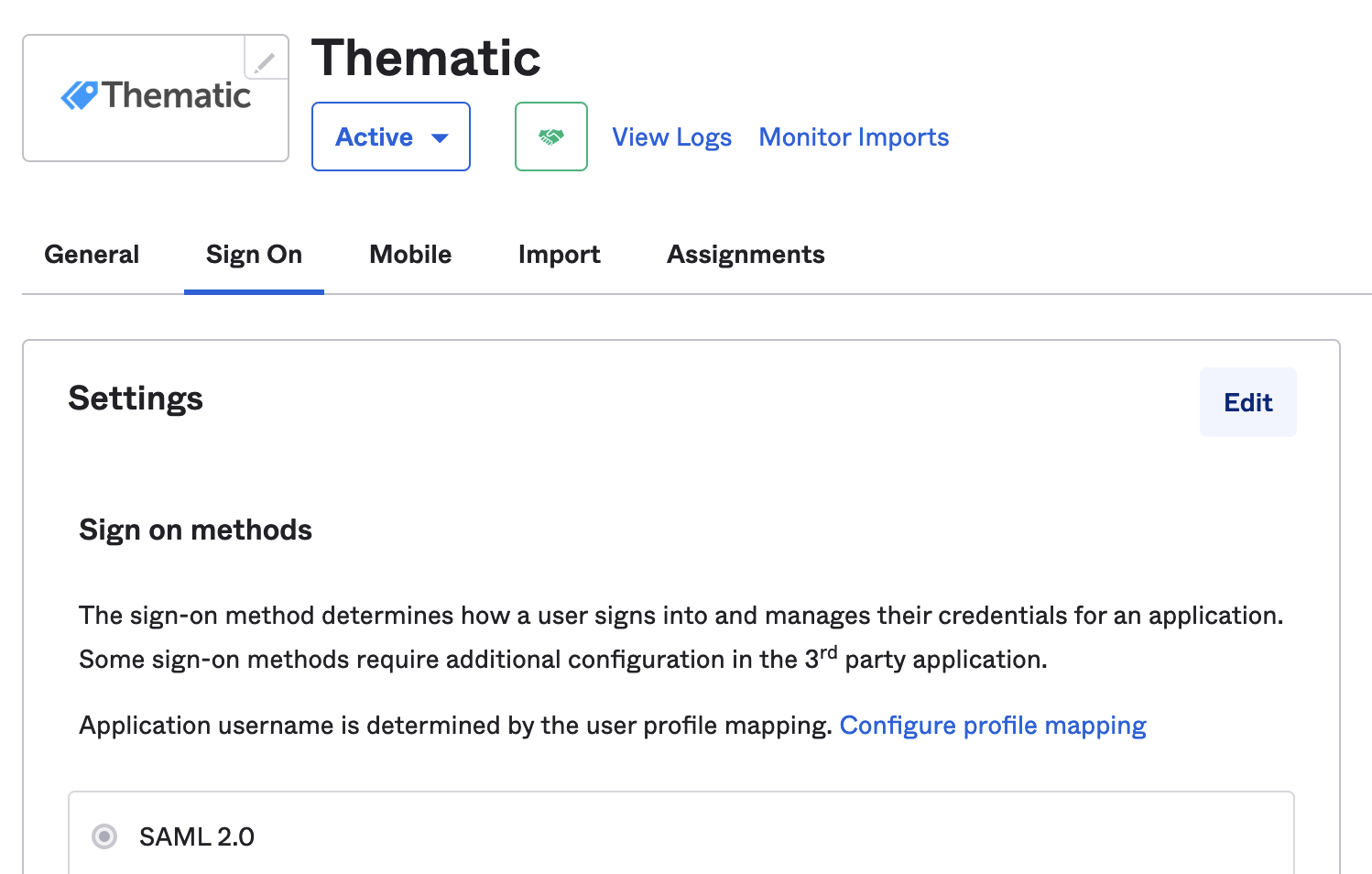
Select the 'Sign On' tab and then Edit
-
-
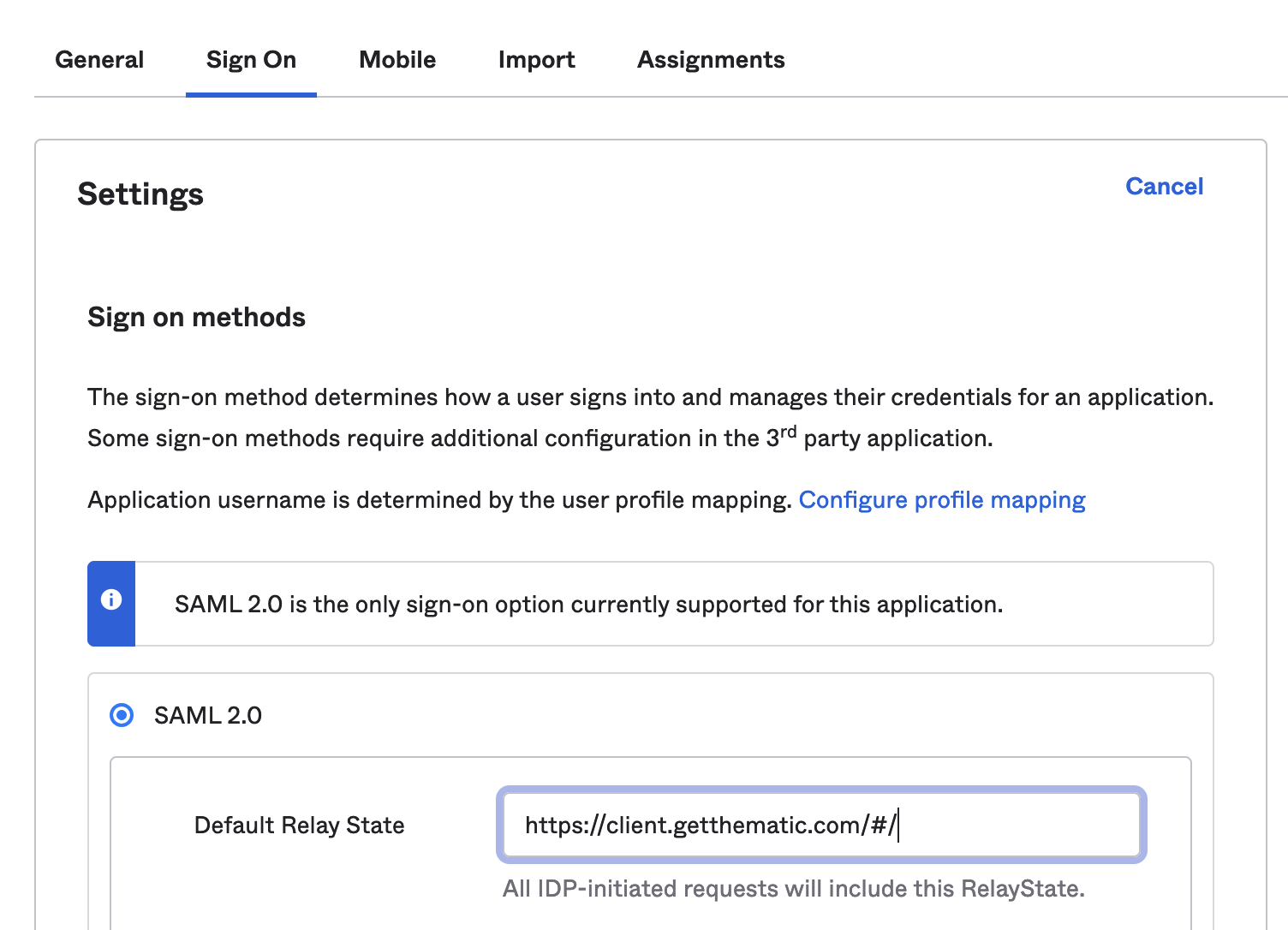
- Enter Default Relay state:
- https://client.getthematic.com/#/
-
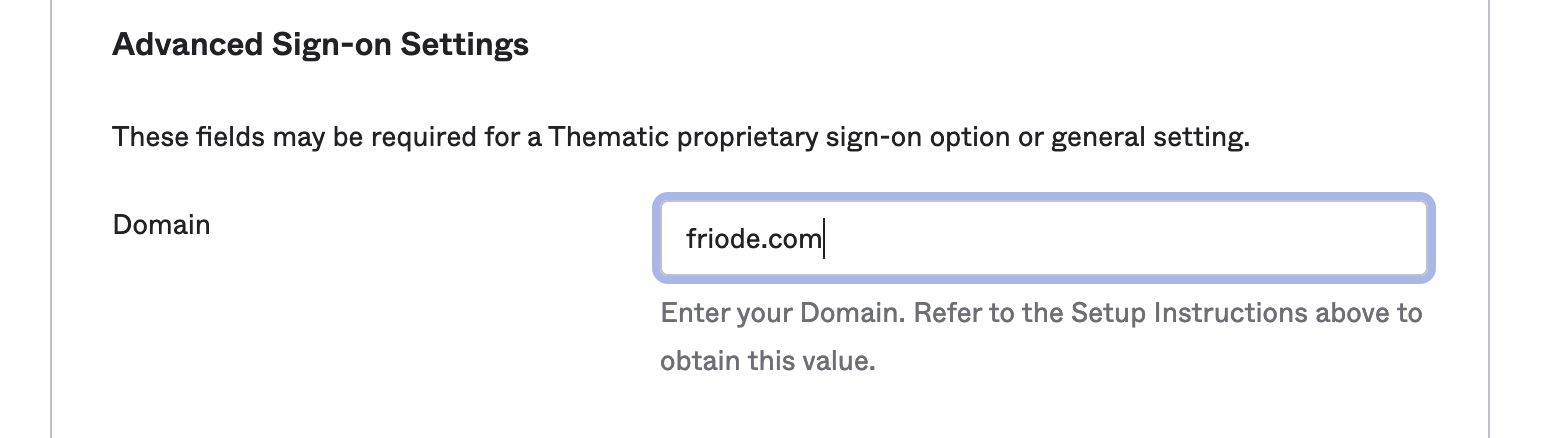
Enter the domain under advanced settings
-
- Click 'Save'
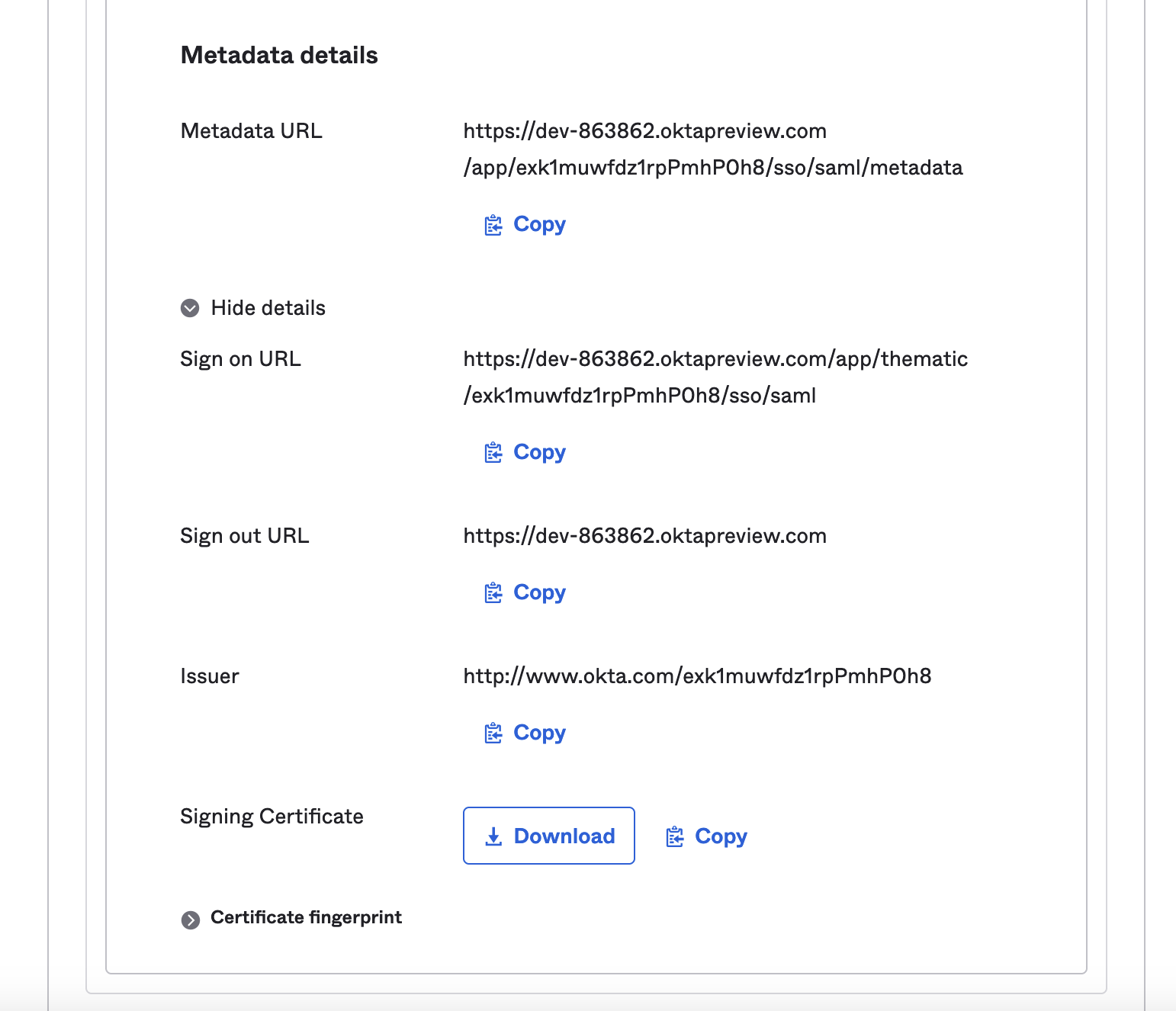
- You will need to provide Thematic with information that is now presented on this screen. Expand the 'More details' tab and copy and paste all information into an email to your CS representative.
-
- You will also need to 'Download' the signing certificate and provide that to your CS representative.
Step 4: Testing
After these steps are completed it should be possible for existing users to log in to Thematic using the 'Sign in with SSO' option on the login page
JIT user provisioning
Thematic supports JIT user provisioning on top of SAML2 flows. This allows for a user who is authenticated through SAML to have an account created and authorization supplied the first time they log in.
How this works
The first time a user attempts to access Thematic through a SSO connection that has JIT enabled, the following process will be followed:
- The SSO Authentication will succeed and a special token with
saml_jit_request = truewill be created - When this token is used the Thematic system will compare the token's user identity against known Identity Providers
- If JIT provisioning is enabled for this provider then a user will be created in Thematic
- Then: all organizations associated with the provider will be checked
- IFF a 'Default role for JIT users' has been set the user will be added to that role
The outcome is that the user now has a Thematic user account and has been assigned the roles in organizations that they should have access to. This user can then continue using the platform.
Setting up JIT user provisioning
As part of the SAML2 setup there is an option to enable JIT user provisioning. After checking the box to enable it, a role must be selected from the dropdown. This is the role that any user created through this flow will have access to.

Note: this process is only done on the first occurrence of the user logging in. If a user already has an account in Thematic, regardless of the organizations they have access to, the JIT process will not occur. This also means the same user logging in through SSO a second time will not have their permissions changed, even if the role selected for JIT has changed.
Troubleshooting
If JIT user provisioning is not enabled, and a user who does not have a Thematic account already created attempts to log in they will see the screen below

In this case the affected user will need to contact their administrator who can either create an account for them or enable JIT user provisioning
SCIM
User provisioning is separate from SSO but is mentioned here as it is related. Thematic supports the SCIM v2 API
Configure SCIM
Contact your CS representative to get a bearer token sent this in a secure one-time-only way.
SCIM connector base URL: Your CS representative can provide this as it is regionally based and limited to your organization.
Region based URLs
- US: https://client.getthematic.com/api/scim/v2
- ANZ: https://client.anz.getthematic.com/api/scim/v2
- EU: https://client.eu.getthematic.com/api/scim/v2
Organization based URLs
These have the id of the organization to apply SCIM operations to embedded in the url
Authorization: Header 'Bearer' type
- Your CS representative can provide a special long lived token that will not need refreshing for several years. We use a bearer token because many identity providers do not have the facility to use refresh tokens or more appropriate oauth integrations.
Was this article helpful?
Your feedback helps us improve our documentation.